

Viewing the System Results
After a pipe system is solved, you have the option of opening the Results Sheet to view all the calculated results in Results Tables, or viewing the solved pipe system in the Drawing Pane with specific results displayed with the pipe system. To view only the solved system in the Drawing Pane, click the View Results Drawing button on the Results Log after the system is calculated and solved. To view the Results Tables on the Results Sheet, click the View Results Sheet button on the Results Log.
The Results Drawing and the Results Sheet can be viewed at the same time, and they are interactive in that clicking on an item on the Results Drawing will automatically highlight and move to that item within the Results Sheet. The reverse is also true, in that selecting a row in the Results Sheet will highlight and zoom to that item on the Results Drawing. The user can switch between the Results Drawing and the Results Sheet as needed. In addition, the user can review the output in the Results Log dialog, by clicking the Show Log button.
The Results Sheet contains a series of tabs that display the calculated results for each type of item in the pipe system. The tabs are organized by item type, except for the All Results tab. The All Results tab displays all of the calculated results by item type. All values displayed in the Results Tables are read-only.
To view a pipe system’s calculated results in the Results Tables:
- After a pipe system has been calculated and solved, click the View Results Sheet button on the Results Log dialog to open the Results Tables or close the results log and click the Results Sheet button on the tool bar.
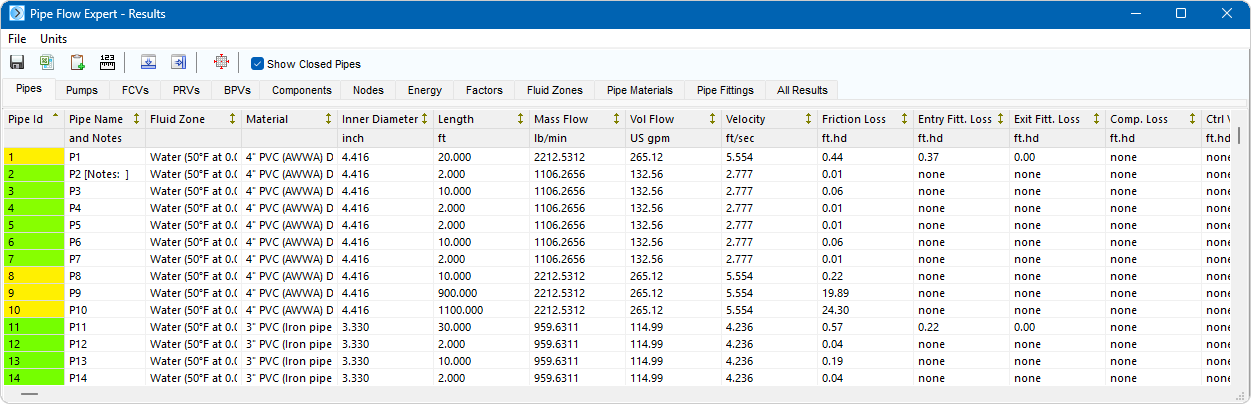
Figure 161 Results Sheet – All Results Table Tab
- Click the tab(s) containing the data you want to view.
- Click the Close button,
 , to close the Results Sheet and return to the Drawing Pane.