

Pipe Data Import
Pipe data, including pipe materials and sizes, can be imported into Pipe Flow Expert using one of the following methods:
- Importing from pipe data files stored on disk.
- Importing directly from a loaded system.
Importing Pipe Data from Disk
Materials and pipe sizes can be added to the Pipe Flow Expert Pipe Database by importing pipe data from files stored on disk.
To import pipe data from files stored on disk:
- Launch the Open File Dialog using one of the following options:
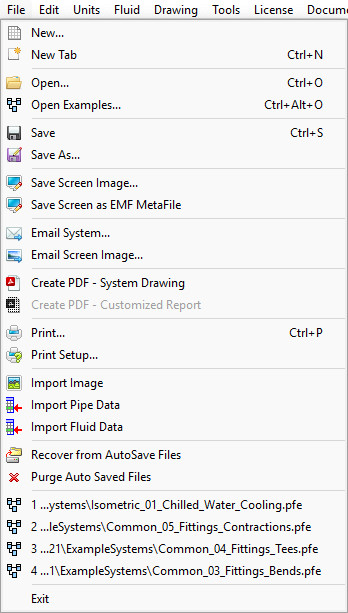
- Click File > Import Pipe Data from the main menu
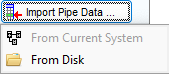
or - Click the Import Pipe Data button and then click From Disk on the Pipe Data screen.
- In the Open Folder dialog Navigate to the folder containing the desired pipe data files.
- Select the required pipe data files and click Open.
Note: to select multiple files use CTRL or SHIFT when selecting files.
The supported Pipe Flow data file types include:
|
File Type |
Description |
|
MaterialName_ScheduleName.pfpi |
Files named in this format are predefined pipe tables provided with the software or available from Pipe Flow Software. They include the material/schedule definition along with all associated pipe sizes. Importing this file will create a new material/schedule (if it does not already exist) and its associated pipe sizes (if they do not already exist). |
|
UserMaterialName_ScheduleName.pfpi |
Files named in this format, with ‘UserMaterial’ at the front, define user-created materials/schedules without including pipe size data. Importing this file will create a new material/schedule (if it does not already exist), but no pipe sizes will be associated with the material/schedule. |
|
UserMaterialName_ScheduleName.pfpiu |
Files named in this format, with ‘UserMaterial’ at the front, define user-created materials/schedules along with their associated pipe sizes. Importing this file will create a new material/schedule (if it does not already exist) and add the corresponding pipe sizes. |
Pipe Flow Expert will analyze and validate the pipe data contained in the files. Only materials and pipe sizes that do not already exist in the Pipe Database will be available for import.
If the files include pipe data suitable for import, a confirmation message dialog will be displayed.
This dialog gives the user the opportunity to continue with the import process or cancel it before any changes are made.
Clicking the View Pipe Data link opens a detailed preview of all the pipe materials and sizes that will be imported, therefore enabling the user to review the pipe data prior to commencing the import process.
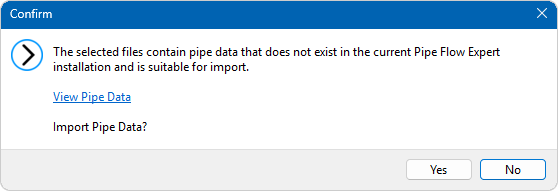
Figure 124 Import Pipe Data from Disk – Confirmation Dialog
- Click Yes to import the Pipe Data, otherwise click No to cancel the import process.
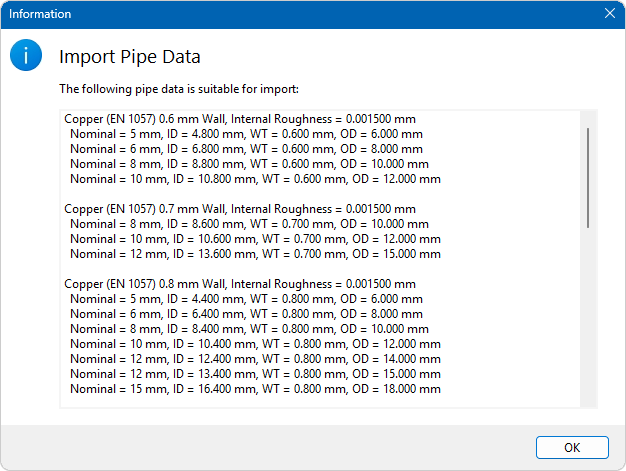
Figure 125 Import Pipe Data from Disk – Pipe Data Preview
Once the pipe data is successfully imported, it will become available for selection in the pipe database on the Pipe Data screen.
Importing Pipe Data from a System
When loading a system or adding/removing pipe data from the Pipe Database, the software automatically analyzes the pipe data of the system in the active tab to identify pipe data that is not defined in the Pipe Database.
If the system contains pipe data that is not defined in the database and is suitable for import, the Unknown System Pipe Data panel will be displayed on the Pipe Data screen, regardless of which Pipe is currently selected.
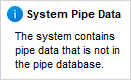
Figure 126 Unknown System Pipe Data Information Panel
To import pipe data from the system:
- Commence the importing of pipe data from the current system process using one of the following methods:
- Click Tools > Import Pipe Data from Current System on the main menu
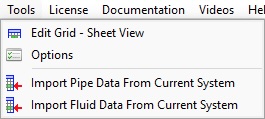
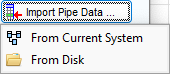
or - Click the Import Pipe Data button and then click From Current System on the Pipe Data screen.
A confirmation message dialog is displayed providing details of the following:
- Total number of Pipes in the current system that contain pipe data that is not currently in the Pipe Database and is suitable for import.
- A link to highlight all the Pipes in the system that have pipe data that is suitable for import.
- An explanation of pipe data that is not suitable for import into the Pipe Database.
- A link to display the pipe data that is suitable for import.
Pipe data may be considered unsuitable for import due to one of more of the following reasons:
- Multiple internal roughness values are defined in the system for the same material.
For example, if two Pipes are assigned the same material but have different internal roughness values, this conflict will prevent the pipe data from being imported.
- A material of the same name is already defined in the Pipe Database of the current installation, but with a different internal roughness value.
- Inconsistent pipe size definitions exist in the network, where the internal diameter, outer diameter and wall thickness values do not equate.
For example, a Pipe with an internal diameter of 25mm, a wall thickness of 2mm and an outer diameter of 30mm would be deemed unsuitable for import since the correct formula is outer diameter = inner diameter + (2 x wall thickness) = 29mm.
This dialog gives the user the opportunity to continue with the import process or cancel it before any changes are made.
Clicking Highlight the Pipes with data suitable for import on the system drawing in will highlight all the Pipes in the network that use the pipe data that can be imported.
Clicking View Pipe Data will display pipe data that will and will not be imported.
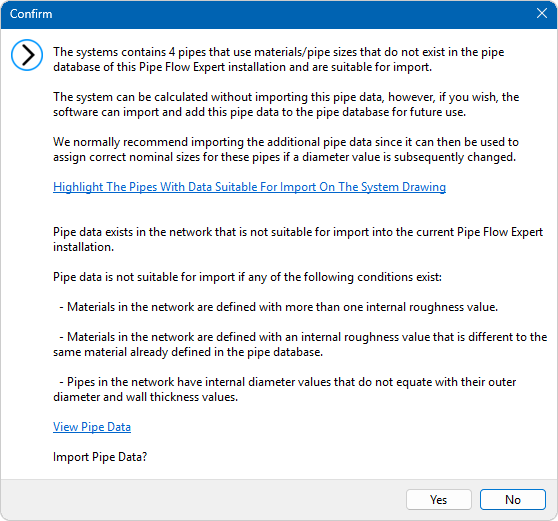
Figure 127 Pipe Data Import from Current System – Confirmation Dialog
- Click Yes to import the pipe data from the current system, otherwise click No to cancel the import process.
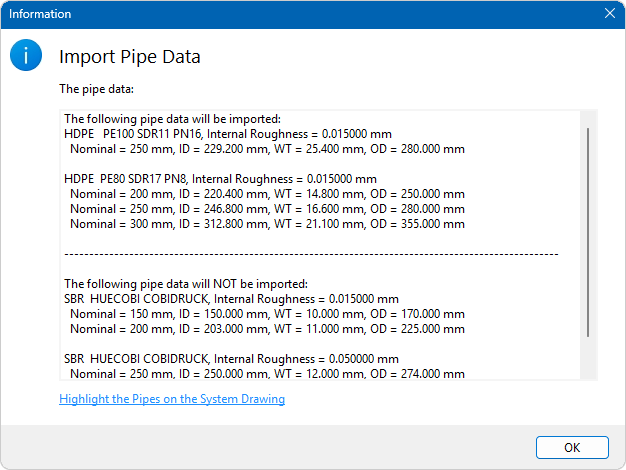
Figure 128 Pipe Data Import from Current System – Pipe Data Preview
Once the pipe data is successfully imported, an information dialog is displayed to confirm the process is complete and to give the user the opportunity to view the import log.
Clicking View Pipe Data Import Log will display the pipe data import log.
The imported pipe data will be available for selection in the Pipe Database of the Pipe Data screen.
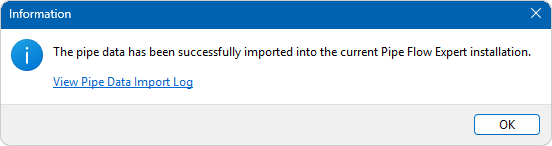
Figure 129 Pipe Data Import from Current System – Import Complete Dialog
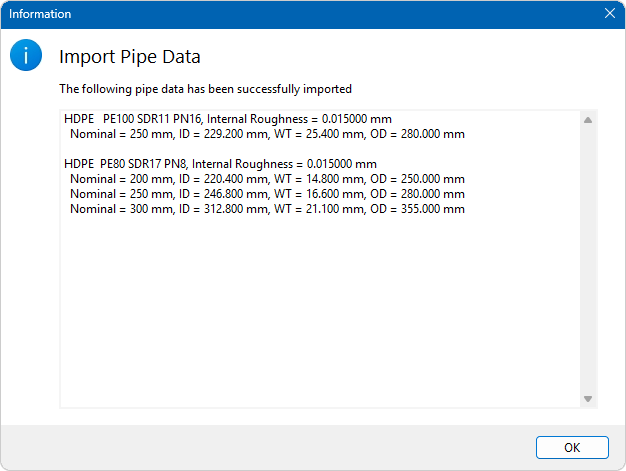
Figure 130 Pipe Data Import from Current System - Import Log