
User Nominals
User-defined nominals can be configured to work with custom Pipe sizes and Fittings. Once defined within the current installation of Pipe Flow Expert, these nominals become available for selection when creating new pipe sizes or custom Fittings.
User nominals are context-specific:
- User nominals created from the Pipe Data screen apply only to Pipes.
- User nominals created from the Fitting Data screen apply only to Fittings.
Pipe user nominals and Fitting user nominals are independent. Creating or deleting a user nominal in one context does not affect the other.
User-defined nominals are created using the User Nominals screen, accessible via the Pipe Data screen or the Fitting Data screen. To open the User Nominals screen, follow these steps:
- On the Pipe Data screen, click the User Nominal button in the Add Pipe Data section to display the User Nominals dialog.
- On the Fitting Data screen, click the User Nominal button in the Create New Fitting section to display the User Nominals dialog.
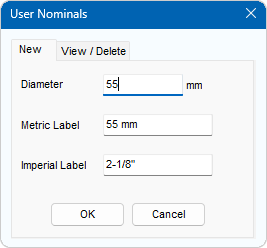
Figure 123 User Nominals Dialog
Nominals consist of a diameter value (measured in millimetres) along with corresponding metric and imperial labels for reference.
Note that defining a user nominal does not influence the calculations or update the nominal sizes within Pipe Flow Expert. User-defined nominals are intended solely for creating new pipe sizes or new custom fitting sizes. Nominal sizes are only used as a reference to check that pipe sizes and fitting sizes match, allowing the software to warn the user when this is not the case, and where possible, to give the user the option to automatically update the chosen fittings as appropriate to a matching size with its associated K value.
Create a User Nominal
To add a new user defined nominal into Pipe Flow Expert:
- Open the User Nominals dialog from either the Pipe Data screen or Fitting Data screen.
(The nominal created will apply only to the current context: Pipes or Fittings)
- Select the New tab.
- Enter the required diameter value (in mm).
When entering a diameter value, Pipe Flow Expert will automatically populate the metric and imperial labels with suitable values.
- Update the metric/imperial labels as needed.
- Click OK.
If a nominal does not already exist within Pipe Flow Expert, it will be added and become available for selection:
- In the Nominal Sizes dropdown on the Pipe Data screen (for pipe user nominals), or
- In the Nominals dropdown on the Fitting Data screen (for fitting user nominals).
Nominal Sizes are considered equivalent only when their diameter value, metric label, and imperial label are identical.
View User Nominals
To view the list of defined user nominals:
- Open the User Nominals dialog from the appropriate screen (Pipe Data or Fitting Data).
- Select the View / Delete tab.
- Click Diameter to view the list of defined user nominals for the current context.
- Select the required user nominal to view its metric/imperial labels.
Delete User Nominal
To delete a user defined nominal:
- Open the User Nominals screen from the appropriate screen (Pipe Data or Fitting Data).
- Select the View / Delete tab.
- Click Diameter to view the list of defined user nominals.
- Select the required user nominal.
- Click the Delete
 button.
- Repeat steps 3 to 5 for all user nominals to be deleted.
- Click OK. Note, clicking Cancel will re-instate any user nominals deleted at step 5.