

Pipe Data Export
Pipe Data, including pipe materials and sizes, can be exported from Pipe Flow Expert to files on disk.
To export pipe data:
- Open the Pipe Data screen.
- Click the Export Pipe Data button to display the Export Pipe Data Sub-Menu.
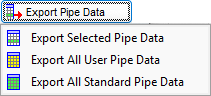
- Click the required export option:
- Export Selected Pipe Data
When on the Choose Material screen, the pipe data for the currently selected material in the database listing will be exported.
When on the Choose Pipe Size screen, the pipe data for the currently selected material will be exported.
- In the Select Folder dialog, navigate to the folder in which the exported pipe data is to be saved.
- Click Select Folder.
- Export All User Pipe Data
Exports all the user pipe data defined the in the pipe database.
- In the Select Folder dialog, navigate to the folder in which the exported pipe data is to be saved.
- Click Select Folder.
- Export All Standard Pipe Data
Exports all the standard pipe data defined the pipe database.
- In the Select Folder dialog, navigate to the folder in which the exported pipe data is to be saved.
- Click Select Folder.
- A confirmation message dialog is displayed providing details of the pipe data being exported.
This dialog confirms the folder into which the exported pipe data files will be saved and gives the user the opportunity to continue with the export process or cancel it.
Clicking the View Pipe Data File To Be Exported link opens a detailed preview of all the pipe data files that will be saved, therefore enabling the user to review prior to commencing the export process.
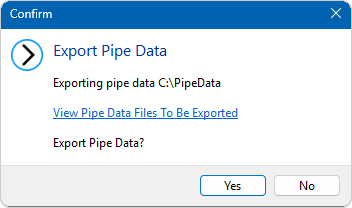
Figure 131 Export Pipe Data to Disk – Confirmation Dialog
Click View Pipe Data To Be Exported to view the filenames of the pipe data to be exported.
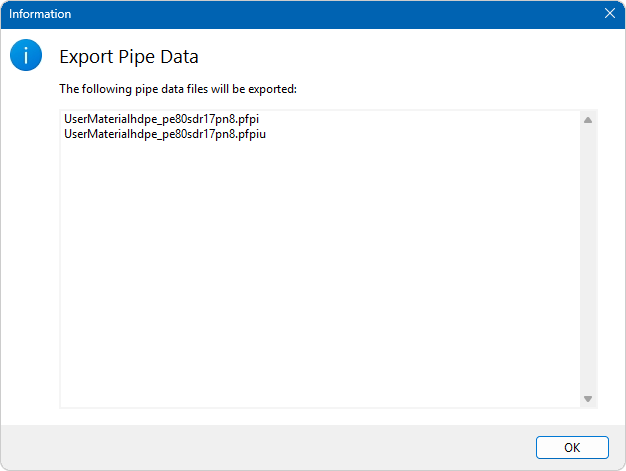
Figure 132 Export Pipe Data to Disk – Pipe Data Files Preview
- Click Yes to export the pipe data to the chosen folder, otherwise click No.
Exported Pipe Data Filename Format
The filename and file extension of the exported pipe data file reflect both the source of the material (standard vs. user defined):
<MaterialName>_<ScheduleMame><.extension>
For user defined materials, the filename begins with ‘UserMaterial’.
|
File Type |
Description |
|
MaterialName_ScheduleName.pfpi |
This filename and file extension will be used when exporting pipe data that has been provided with the software or that is available from Pipe Flow Software. |
|
UserMaterialName_ScheduleName.pfpi |
This filename and file extension will be used when exporting a user defined pipe material/schedule. The file contains the material/schedule definition. It does not contain any pipe size data. |
|
UserMaterialName_ScheduleName.pfpiu |
This filename and file extension will be used when exporting a user defined pipe material/schedule and pipe sizes are defined for the material/schedule. The file contains the material/schedule definition and all corresponding pipe size data. |
Handling Existing Files During Pipe Data Export
If a file with the same name already exists in the selected export folder, Pipe Flow Expert displays a confirmation message dialog to prevent accidental overwriting.
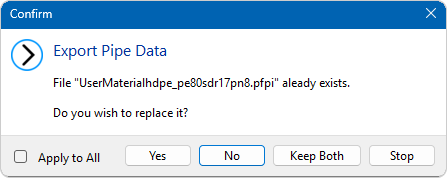
Figure 133 Export Pipe Data to Disk – Existing Files Confirmation Dialog
This dialog provides several options for how to proceed:
|
Option |
Description |
|
Yes |
Replace the existing file with the newly exported one. |
|
No |
This is the default option. |
|
Keep Both |
Save the new file alongside the existing one. |
|
Stop |
Cancel the entire export process immediately. |
|
Apply to All |
The checkbox option is intended for use with Yes, No or Keep Both, allowing the selected action to be automatically applied to all remaining files in the export operation without prompting again. |
This confirmation process ensures that users have full control over how existing files are handled and helps prevent unwanted overwriting of pipe data.
Once the pipe data is successfully exported, an information dialog is displayed to confirm the process is complete and to give the user an opportunity to view the export log.
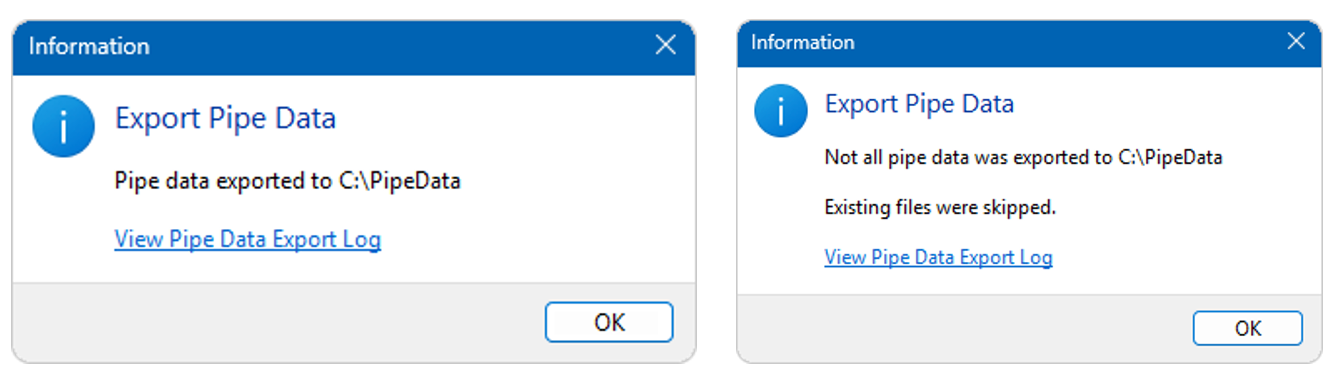
Figure 134 Export Pipe Data to Disk – Export Complete Dialog
The export log lists every file processed and indicates whether it was successfully exported or skipped.
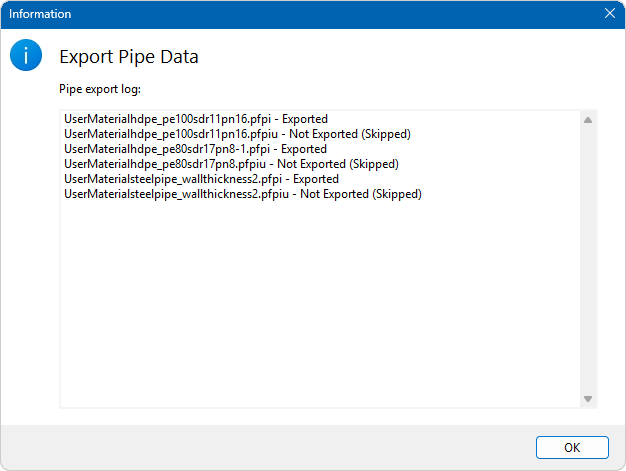
Figure 135 Pipe Data Export to Disk – Export Log