

Fluid Data Import
Fluid data can be imported into Pipe Flow Expert using one of the following methods:
- Importing from fluid data files stored on disk
- Importing directly from a loaded system
Importing Fluid Data from File
Fluid data can be added to the Pipe Flow Expert fluid database by importing fluid data from files stored on disk.
To import fluid data from files stored on disk:
- Launch the Open File Dialog using one of the following options:
- Click File > Import Fluid Data on the main menu
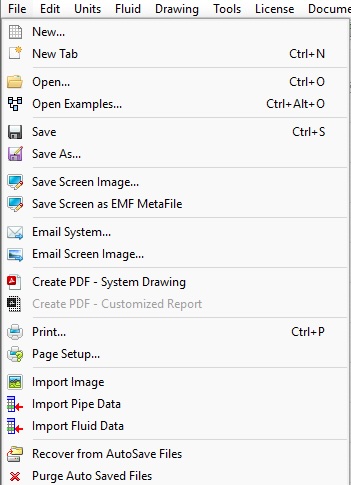
or - Click Fluid > Import Fluid Data from File on the main menu
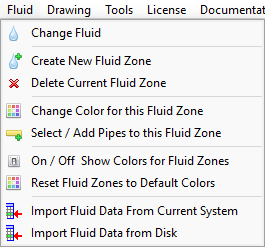
or - Click the Fluid button and then choose Import Fluid Data from Disk
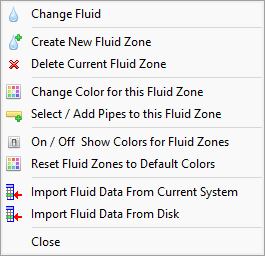
or - Click the Import Fluid Data button and then click From Disk on the Fluid Data screen
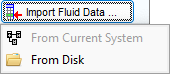
- In the Select File Dialog, navigate to the folder containing the desired fluid data files.
- Select the required fluid data files and click Open.
Note: to select multiple files use CTRL or SHIFT keys when selecting files.
The supported Pipe Flow fluid data file types include:
|
File Type |
Description |
|
.pfli |
These are standard Pipe Flow fluid files that contain liquids and are distributed with the software or available from Pipe Flow Software. |
|
.pfga |
These are standard Pipe Flow fluid files that contain gases and are distributed with the software or available from Pipe Flow Software. |
|
.pfliu |
These are user defined liquid files that contain liquids created using the Pipe Flow Expert software. |
|
.pfgau |
These are user defined fluid files that contain gases created using the Pipe Flow Expert software. |
Pipe Flow Expert will analyze and validate the fluid data contained in the files. Only fluids that do not already exist in the fluid database will be available for import.
If the files include fluid data suitable for import, a confirmation message dialog will be displayed.
This dialog gives the user the opportunity to continue with the import process or cancel it before any changes are made.
Clicking the View Fluid Data link opens a detailed preview of all the fluid data that will be imported, therefore enabling the user to review the fluid data prior to commencing the import process.
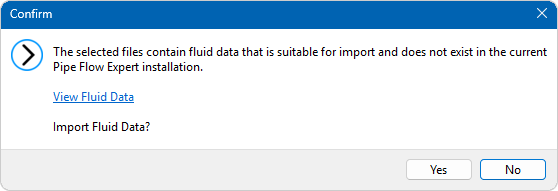
Figure 136 Import Fluid Data from Disk - Confirmation Dialog
- Click Yes to import the Fluid Data, otherwise click No.
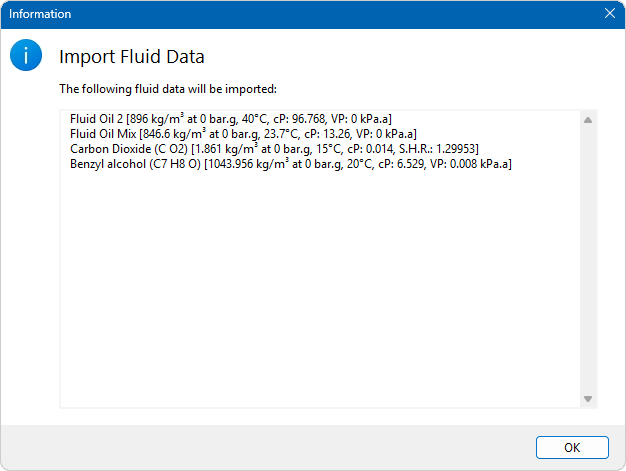
Figure 137 Import Fluid Data from Disk – Fluid Data Preview
Once the fluid data is imported, a confirmation dialog will be displayed containing a link to view the fluid import log and the fluid data will become available for selection in the Fluid Data screen.
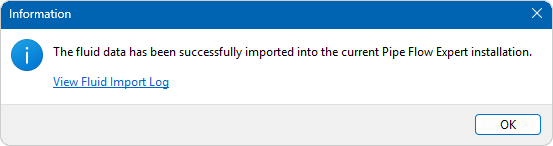
Figure 138 Fluid Data Import from Disk Finished Dialog
Click View Fluid Import Log to view the fluid data that has been imported.
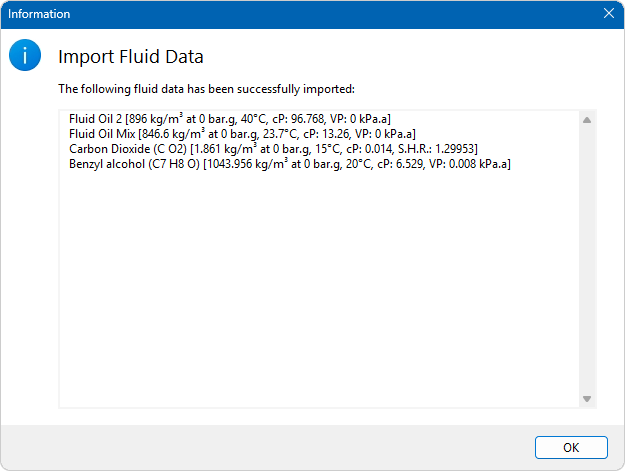
Figure 139 Fluid Data Import from Disk Log
Importing Fluid Data from a System
When loading a system or adding/removing fluid data from the fluid database, the software automatically analyzes the fluid data of the system in the active tab to identify fluid data that is not defined in the fluid database.
If the system contains fluid data that is not found in the database and is suitable for import, the Unknown System Fluid Data panel will be displayed on the Fluid Data screen.
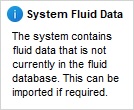
Figure 140 Unknown System Fluid Data Information Panel
To import fluid data from the system:
- Commence the Import Fluid Data process using one of the following methods:
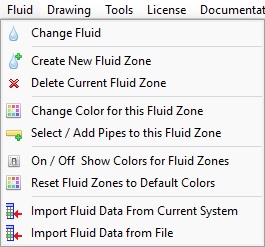
- Click Fluid > Import Fluid Data from Current System on the main menu
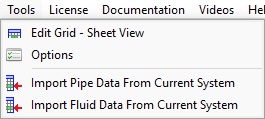
or - Click Tools > Import Fluid Data from Current System on the main menu
or
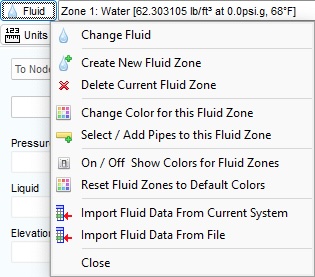
- Click the Fluid button and then choose Import Fluid Data from Current System
or - Click the Import Fluid Data button and then click From Current System on the Fluid Data screen.
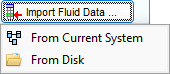
If the system contains fluid data suitable for import, a confirmation message dialog will be displayed.
This dialog gives the user the opportunity to continue with the import process or cancel it before any changes are made.
Clicking the View Fluid Data link opens a detailed preview of all the fluid data that will be imported, therefore enabling the user to review the fluid data prior to commencing the import process.
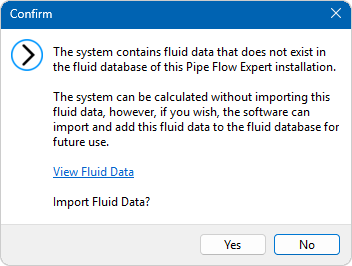
Figure 141 Fluid Data Import from Current System – Confirmation Dialog
- Click Yes to import the fluid data from the current system, otherwise click No to cancel the import process.
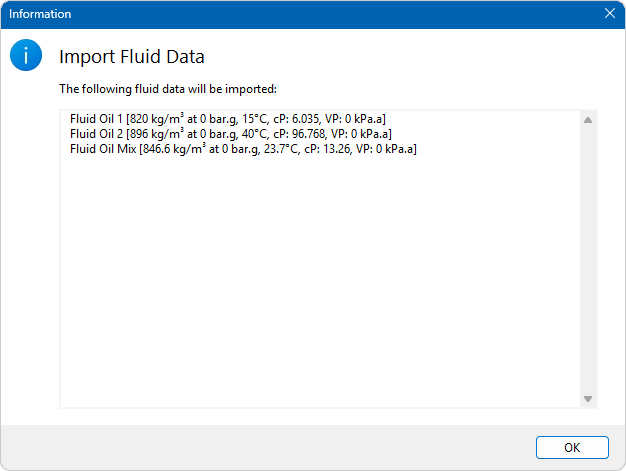
Figure 142 Fluid Data Import from Current System – Fluid Data Preview
- Click Yes to import the Fluid Data, otherwise click No.
Once the fluid data is imported, a confirmation dialog will be displayed containing a link to view the fluid import log and the fluid data will become available for selection in the Fluid Data screen.
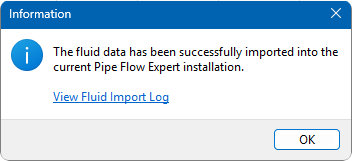
Figure 143 Fluid Data Import from Current System Finished Dialog
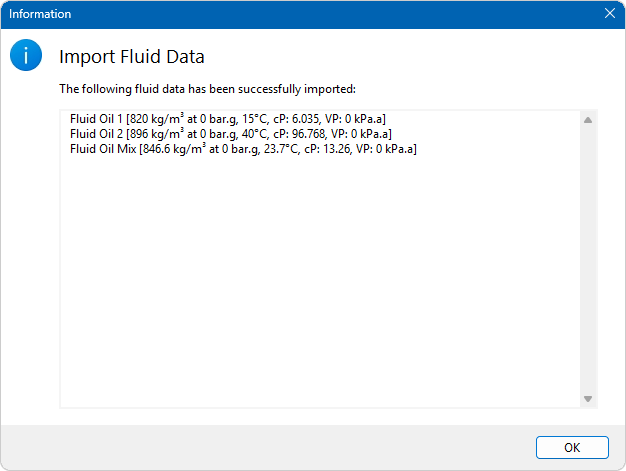
Figure 144 Fluid Data Import from Current System Log