
Using the Node Pop-up menu while drawing
In Pipe Flow Expert, you can change the type of Node, and where applicable, its attributes, of the selected Node by using the Node Pop-up menu.
Select a Node (left click) and then click the right mouse button to display the Node Pop-up menu.
The Node Pop-up menu is context sensitive and the menu items available will depend upon the type of Node selected.
Select the option (or sub-option) that you require and click to perform the action.
Selected Node: Tank
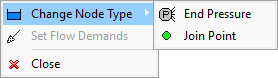
Figure 57 Node (Tank) Pop-up Menu
|
Feature |
Description |
|
Change Node Type > End Pressure |
Changes the Node from a Tank to an End Pressure. |
|
Change Node Type > Join Point |
Changes the Node from a Tank to a Join Point. |
|
Set Flow Demands |
Not applicable for Tank Nodes. |
|
Close |
Close the Node pop-up menu |
Selected Node: Join Point
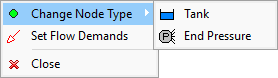
Figure 58 Node (Join Point) Pop-up Menu
|
Feature |
Description |
|
Change Node Type > Tank |
Changes the Node from a Join Point to a Tank. |
|
Change Node Type > End Pressure |
Changes the Node from a Join Point to an End Pressure. |
|
Set Flow Demands |
Opens the Flow Demands dialog to set the inflow and outflow demands as required |
|
Close |
Close the Node pop-up menu |
Selected Node: End Pressure
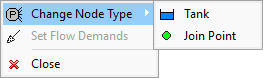
Figure 59 Node (End Pressure) Pop-up Menu
|
Feature |
Description |
|
Change Node Type > Tank |
Changes the Node from a End Pressure point to a Tank. |
|
Change Node Type > Join Point |
Changes the Node from a End Pressure to a Join Point |
|
Set Flow Demands |
Not applicable for End Pressure Nodes. |
|
Close |
Close the Node pop-up menu |