

Tank Node Data
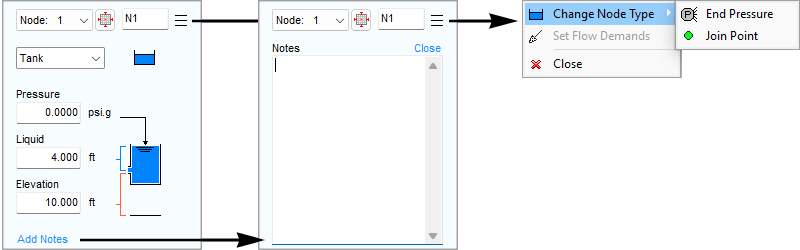
|
Feature |
Description |
||
|
Node Id List |
Use the Node Dropdown List to select a Node or to scroll through each of the Nodes in the pipe system. |
||
|
Node |
The name of the Node currently selected in the Drawing Pane. Use the Node field to edit the Node name. |
||
|
Zoom |
Click the Zoom button to re-display the drawing with the selected Node at the center of the visible drawing area. |
|
|
|
Menu |
Opens the Tank sub menu which provides further options to:
A Right Click on a Tank will also display the Tank sub menu. |
||
|
Type (Tank) |
The type of Node currently selected in the Drawing Pane. Use the Type field to modify the Node type. There are three types of Nodes – Join Point, Tank, or fixed Pressure Demand (End Pressure). |
||
|
Type (Tank Icon) |
Displays the image representing the selected Tank in the Drawing Pane. Click the Icon to select the Tank image you want displayed on the pipe system drawing. The icon size can be selected from a range of scales. The image you select does not affect any of the Tank’s properties or values. |
|
|
|
Pressure |
The surface pressure of the fluid in the Tank expressed in the units displayed. |
||
|
Liquid |
The amount of fluid above the Tank exit point expressed in the units displayed. |
||
|
Elevation (Exit from Tank) |
The elevation at the exit point of the Tank expressed in the units displayed. |
||
|
Add Notes |
Opens a text area where you can enter notes about the Node currently selected in the Drawing Pane. Notes can be up to 200 characters. |
||


