
Adding a Fitting to the Database
If a Standard K, Hooper 2K or Darby 3K Fitting you want to add to a Pipe does not exist in the Fitting database, a new Fitting can be created and added to the database and/or Pipe by clicking Create Fitting. Creating a new Fitting involves entering the required information in the Create New Fitting section or transferring a Fitting from the database and then editing the values as required. The Fitting can be added to the database by clicking Save to Database or directly added to the Pipe by clicking one of the Add to Pipe buttons.
A Standard K value represents a local loss coefficient. This value is supplied by the Fitting manufacturer. Many Fittings have a fixed K value, but some Fittings have a K value that needs to be calculated based on the geometry of the Fitting. The Calculate Standard K Fitting section contains helpers for calculating K values for Rounded Entrances, Gradual Expansions, Gradual Contractions, Sudden Expansions, Sudden Contractions and Long Pipe Bend Fittings. When you click a helper button, the helper screen opens that contains fields for defining the Fitting measurement ratios required to calculate the Fitting’s K value.
To add a Fitting to the Fitting database using the Create New Fitting button, open the Fitting Data screen using one of the following methods:
- Click the Add Fittings button
 on the tool bar.
 - The Fittings symbol is displayed next to your mouse pointer when the pointer is in the Drawing Pane.
- Click on the Pipe in the Drawing Pane where you want to add a Fitting.
- Select a Pipe in the Drawing Pane and click the Add/Edit Fittings button
 in the Pipe Pane.
- Click the Add/Edit Fittings button
 on the Pipe Data tab of the Configuration Screen.
The Fitting Data screen will be displayed.
- Click the Create new Fitting button. This opens the Create new Fitting section in the Fitting Data screen

Figure 74 Add a custom Fitting to the Fitting Database and/or Pipe
- To change the symbol representing the Fitting, click the Change button to open the Choose Symbol screen.
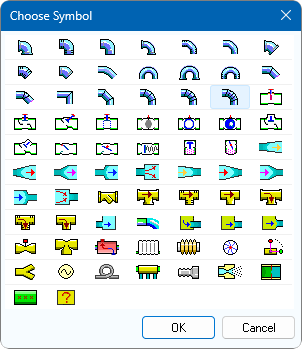
Figure 75 Choose Symbol Dialog
- Select the symbol you want to represent the Fitting.
- Click OK to add the symbol to the Symbol field and close the Choose Symbol screen.
- Type the Fitting type name in the Type field.
- For Standard K Fittings, Select the Fitting’s metric size from the Metric list or select the Fitting’s imperial size from the dropdown nominal size listings.
- For Hooper 2K Fittings, enter the K1 and K∞ values for the Fitting.
See Section: Hooper 2K for further information.
- For Darby 3K Fittings, enter the K1, Ki and Kd values for the Fitting.
See Section: Darby 3K for further information.
- Type a description of the Fitting in the Description field.
- Click the Save to Database button to add the Fitting to the Fitting Database.
- If you want to add the Fitting to the Pipe, as well as the Fitting database, click one of the Add to Pipe buttons to add the new Fitting to the Pipe.
- The new Fitting is displayed in the Pipe Fittings section of the Pipe Data screen.
- Select the quantity of the Fitting you are adding to the Pipe from the Fitting’s Qty list in the Pipe Fittings section.
- Select the position of the Fitting to be either start or end of Pipe in the Pipe Fittings section.
- Click Save Fittings to add the Fitting to the Pipe, and to close the Fitting Data screen.
To add a custom Standard K Fitting to the Fitting database using the ‘Calculate K Value‘ buttons, open the Fitting Data screen using one of the following methods:
- Click the Add Fittings button
 on the tool bar.
 - The Fittings symbol is displayed next to your mouse pointer when the pointer is in the Drawing Pane.
- Click on the Pipe in the Drawing Pane where you want to add a Fitting.
- Select a Pipe in the Drawing Pane and click the Add/Edit Fittings button
 in the Pipe Pane.
- Click the Add/Edit Fittings button
 on the Pipe Data tab of the Configuration Screen.
The Fitting Data screen will be displayed.
Select Standard K and then click the Standard K Helpers link to display the set of ‘Calculate K Value’ Helpers.
Clicking one of the Calculate K Value buttons opens the Create new Fitting section in the Fitting Data screen, and the K value calculation screen for the selected fitting type.
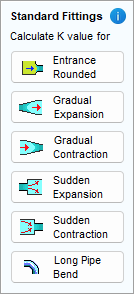
Figure 76 Calculate Standard K Helpers
For example, if you selected the Sudden Contraction button, the Sudden Contraction K value calculation screen opens.
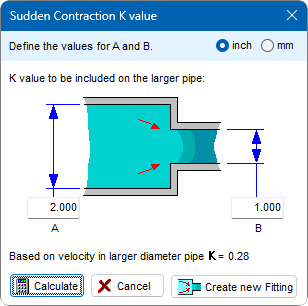
Figure 77 Sudden Contraction K value Dialog
- Enter the applicable values in the K value calculation screen.
- Click the Calculate button to calculate the Fitting’s K value.
- The calculated K value is displayed in the K value dialog.
- When you have the desired K value, click the Create new Fitting button to close the K value calculation screen, and add the calculated K value to the K value field in the Create new Fitting section in the Fitting Data screen.
- The Symbol field defaults to the symbol on the Calculated K value button you selected.
- To change the symbol representing the Fitting, click the Change button to open the Choose Symbol screen.
- Select the symbol you want to represent the Fitting. Click OK to add the symbol to the Symbol field and close the Choose Symbol screen
- The Type field defaults to the type of Fitting associated with the Calculated K value button selected.
- To edit the Fitting type, type the Fitting type name in the Type field.
- The Nominal field defaults to the nominal size of the current pipe (or Fittings with a calculated K value). The user can select the nominal size from the dropdown listings if appropriate.
- Type a description of the Fitting in the Description field.
- Click the Save To Database button to add the Fitting to the Fitting database.
- If you want to add the Fitting to the Pipe, instead of the Fitting database, click one of the Add to Pipe buttons to add the new Fitting to the Pipe.
- The new Fitting is displayed in the Pipe Fittings section of the Fitting Data screen.
- Select the quantity of the Fitting you are adding to the Pipe from the Fitting’s Qty list in the Pipe Fittings section.
- Select the position of the Fitting to be either start or end of Pipe in the Pipe Fittings section.
- Click Save Fittings to add the Fitting to the Pipe, and to close the Fitting Data screen.