
Adding a Fitting to a Pipe
To add Fittings to a Pipe, open the Fitting Data screen using one of the following methods:
- Click the Add Fittings button
 on the tool bar.
 - The Fittings symbol is displayed next to your mouse pointer when the pointer is in the Drawing Pane.
- Click on the Pipe on the Drawing Pane where you want to add a Fitting.
- Select a Pipe in the Drawing Pane and click the Add/Edit Fittings button
 in the Pipe Pane.
- Click the Add/Edit Fittings button
 on the Pipe Data tab of the Configuration Screen.
The Fitting Data screen will show the set of fittings on the current Pipe and the available fittings for the currently selected fitting method (Standard K, Hooper 2K, Darby 3K, Expansion K or Contraction K).
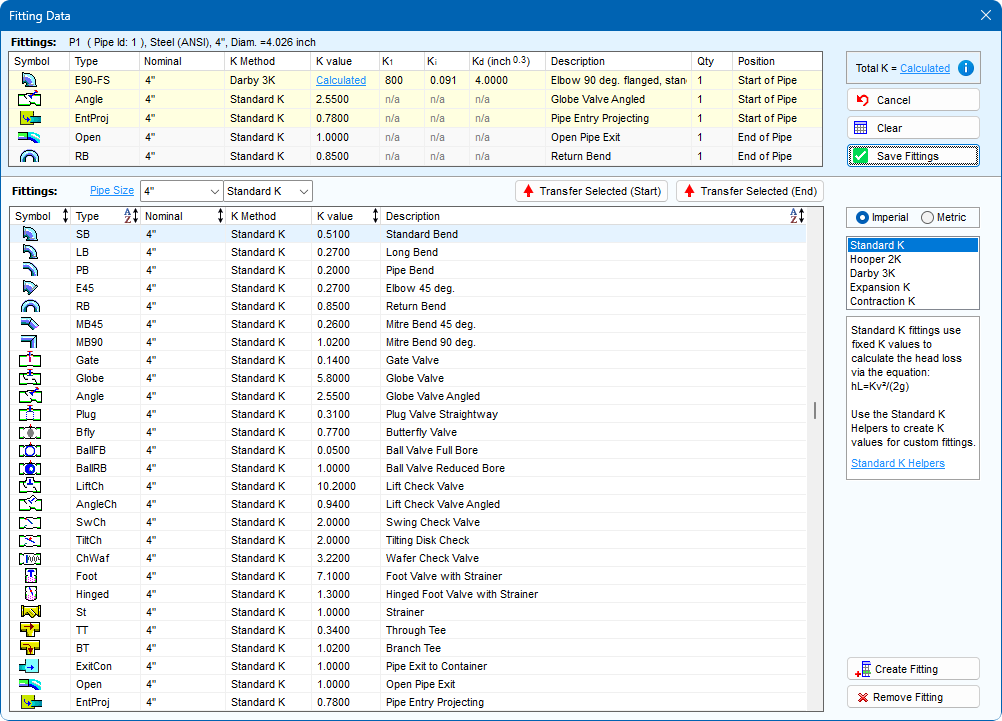
- Select the required Fitting method using one of the Fitting method dropdown lists. The list of available Fittings for the Fitting method will be displayed in the Fittings Database section of the Fitting Data screen.
- For Standard K Fittings, select the nominal pipe size from the dropdown list to move to the required Fitting sizes in the Fitting Database.
Click on the Pipe Size label to show the Fittings which match the current Pipe size.
- If the Fitting is not in the Fitting Database, click the Create Fitting button to add the new fitting to the database.
See Section: Fittings and Valves > Adding a Fitting to the Database for further information
NOTE: Create Fitting is not available for Expansion K or Contraction K Fittings.
- Double click on a Fitting item or click a Transfer Selected button to add it to the Fittings on the Pipe.
NOTE: The default position assigned to the Fitting is the start of the Pipe, however this will depend upon how the Pipe Data screen was opened and how the Fitting was added to the Pipe:
- When a Fitting is added to the Pipe by double clicking the Fitting item, the default position will correspond to the placement of the Fitting selected when opening the Fitting Data screen.
- When a Fitting is added to the Pipe using a Transfer Selected button, the default position will correspond to the button clicked.
- The selected Fitting is displayed in the Pipe Fittings section of the Fitting Data screen.
- Select the quantity of the Fitting you are adding to the Pipe from the Fitting’s Qty list in the Pipe Fittings section.
NOTE: Only one Expansion K or Contraction K can be added to the Pipe and therefore the quantity for these Fittings cannot be changed.
- Select the position of the Fitting to be either start or end of Pipe in the Pipe Fittings section.
NOTE: Expansion K and Contraction K Fittings can only be placed at the end of a Pipe and therefore the position of these Fittings cannot be changed.
- To add additional Fittings to the Pipe, repeat Steps 7 – 10.
- Click Save to add the Fitting to the Pipe, and to close the Fitting Data screen.
When in Design Mode and the Pipe Fittings section contains Hooper 2K, Darby 3K, Expansion K or Contraction K Fittings, the K value for these Fittings and the Total K for all the Fittings on the Pipe will be displayed as Calculated. Clicking Calculated will display a dialog providing further information.
When in Results Mode and the Pipe Fittings section contains Hooper 2K, Darby 3K, Expansion K or Contraction K Fittings, the K value for these Fittings and the Total K value for all the Fittings on the Pipe will be displayed in accordance with the calculated K values.
When one or more Fittings are added to a Pipe, the Include check box, is displayed and selected next to the Add/Change Fittings button in the Pipe Pane. When the Include check box is selected, Pipe Flow Expert includes the data from the Fittings on the Pipe in the calculations for solving the pipe system.
To remove the Fittings’ data from the calculations, clear the Include check box.
Section: Calculations and Results for further information about calculating and solving systems.