

Results Colors
The results drawing can display Pipes and Nodes from the solved network using a color gradient to highlight the Pipes or Nodes based on the result value for a chosen calculation category.
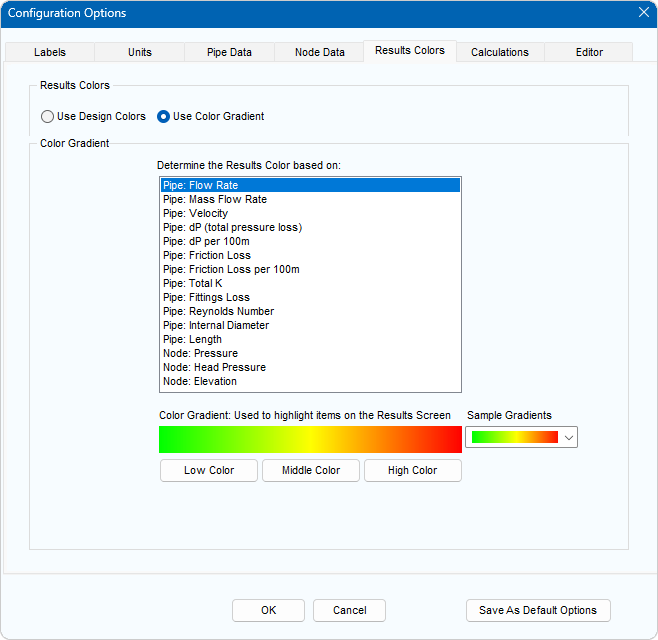
Figure 49 Configuration Options Dialog – Results Colors Tab
- Click the Color button,
 , on Results Drawing Color Key, to open the Results Colors tab of the Configuration Options dialog.
- Select a calculation category to be display in color on the Results Drawing.
- Choose a color gradient from the dropdown of sample gradients, or use the Low, Middle and High color buttons to create your own color gradient.
- Click OK to update the drawing pane.