

Pipe Features
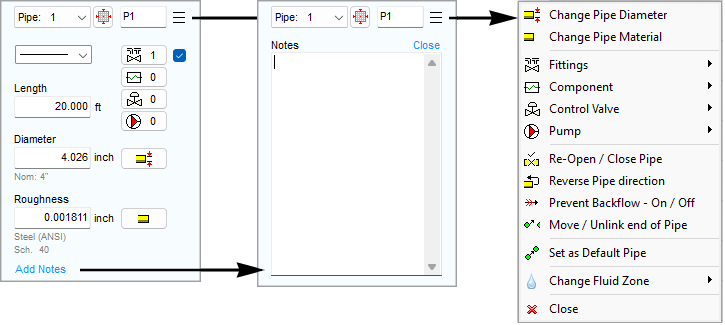
|
Feature |
Description |
|
|
Pipe Id List |
Use the Pipe dropdown list to select a Pipe or to scroll through each of the Pipes in the pipe system. |
|
|
Name |
The name of the Pipe currently selected in the Drawing Pane. Use the Name field to edit the Pipe name. |
|
|
Zoom |
Click the Zoom button to re-display the drawing with the selected Pipe at the center of the visible drawing area. |
|
|
Menu |
Opens the Pipe sub menu which provides further options to:
A Right Click on a Pipe will also display the Pipe sub menu. |
|
|
Length |
The length of the Pipe currently selected in the Drawing Pane. Use the length field to change the length of the Pipe. |
|
|
Internal Diameter |
The internal diameter of the Pipe currently selected in the Drawing Pane. Use the internal diameter field to change the internal size of the Pipe. Click the Diam? button to display the pipe sizes available for the Pipe material on the Pipe Data screen. |
|
|
Roughness |
The internal roughness of the Pipe currently selected in the Drawing Pane. Use the roughness field to change the internal roughness of the Pipe. Click the Material button to display the Pipe Material Database on the Pipe Data screen. |
|
|
Add Notes |
Opens a text area where you can enter notes about the Pipe currently selected in the Drawing Pane. Notes can be up to 200 characters. |
|
|
Pipe Color and Line Width |
Set the color and line width of the Pipe currently selected in the Drawing Pane. |
|
|
Add/Change Fittings button |
Opens the Fitting Data screen. Use the Fittings Database to add and maintain Fittings on a Pipe. The number of Fittings on the Pipe is displayed next to the Fitting image on the Add/Change Fitting button. |
|
|
Add/Change Component Pressure Loss button |
Add a Component to the Pipe currently selected in the Drawing Pane. Change the Pressure Loss characteristics for the Component. A number is displayed next to the Component image to indicate if the Component is active. |
|
|
Add/Change Control Valve button |
Add a Control Valve to the Pipe currently selected in the Drawing Pane. Set the maximum flow rate in the Pipe by using a Flow Control Valve (FCV), or set the pressure at the end of the Pipe by using a Pressure Reducing Valve (PRV), or set the pressure at the start of the Pipe by using a Back Pressure Valve (BPV). A number is displayed next to the Control Valve image to indicate if the Control Valve is active. |
|
|
Add/Change Pump button |
Add a Pump to the Pipe currently selected in the Drawing Pane. Enter the flow rate and head characteristics for various points on the Pump performance curve. A number is displayed next to the Pump image to indicate if the Pump is active. |
|
|
Include check boxes |
Include/Exclude status for various items added to the Pipe currently selected in the Drawing Pane. i.e. Fittings & Valves, Components, Control Valves, Pumps. |
|
|
Change Diameter |
Display the Pipe Diameter Size Database on the Pipe Data screen. |
|
|
Material |
Display the Pipe Material Database on the Pipe Data screen. |
|

