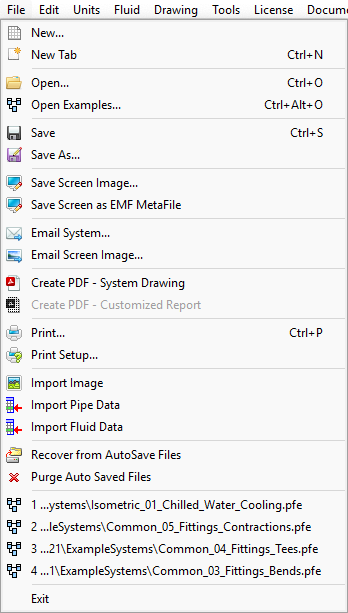
Menu Items
|
Description
|
New
|
Opens a new drawing grid in the Drawing Pane.
|
New Tab
|
Opens a new drawing grid in a new tab. Tabbed Design Sheets let you work on multiple systems simultaneously. Up to 4 different systems may be worked on concurrently using the ‘Tabbed’ system feature.
|
Open
|
Displays the Open dialog. Select a .pfe file and click the Open button to open a pipe system drawing in Pipe Flow Expert.
|
Open Examples
|
Opens the Example Systems dialog. Select an example and click the Load Example System button to open an example system drawing in Pipe Flow Expert.
|
Save
|
Saves your changes to the pipe system drawing.
|
Save As
|
Opens the Save As dialog. Browse to where you want to save the pipe system, name the .pfe file, and click Save.
|
Save Screen Image
|
Save an image of the visible drawing area as a jpeg file.
|
Save Screen as EMF Metafile
|
Save the drawing as an Enhanced Metafile.
|
Email System
|
Opens a new email message with a .pfe file of your current design attached to an email.
|
Email Screen Image
|
Opens a new e-mail message with a jpeg of the screen image attached to the e-mail.
|
Create PDF – System Drawing
|
Create a PDF document of the system drawing.
|
Create PDF – Customized Report
|
Create a PDF customized report, including cover sheet with logo image, system drawing and results tables. Including a high resolution pump graph with performance curves.
|
Print
|
Opens the Printing Drawing dialog. Type the page title and click the Print button to print the image currently visible in the Drawing Pane.
|
Print Setup
|
Opens the Print Setup dialog. Define your printing preferences and click OK.
|
Import Image
|
Opens the Import Image dialog. Allows browse of folders and files to select import of image file on to the system drawing.
|
Import Pipe Data
|
Opens the Import Pipe Data – Select Files dialog. Allows browse of folders and files to select and then import pipe data from disk into the pipe database.
|
Import Fluid Data
|
Opens the Import Fluid Data – Select Files dialog. Allows browse of folders and files to select and then import fluid data from disk into the fluid database.
|
Recover from AutoSave Files
|
Pipe Flow Expert will automatically save a backup of your current design at approximately 5-minute intervals. In the event of a problem, you can try to load the most recent backup file to try and recover your system.
|
Purge Auto Saved Files
|
Delete the files created by the auto save feature.
|
Exit
|
Closes the application.
|