

Choosing Pipe Drawing Defaults
If you will be using the same type of Pipe throughout a pipe system, you can set up Default Pipe values. The Default Pipe values are used to automatically populate the attributes of each pipe as you add a new section of pipe to the system. You can set up Default Pipe values for the pipe’s material, size, internal diameter, roughness, length, as well as its fittings, components, and valves. Pipe default values are set up on the Pipe Data tab of the Configuration Options dialog.
The Default Pipe values are used when adding Pipes however you can customize the values for an individual pipe in the system at any time, by editing its values in the Pipe Pane or on the Pipe Data screen.
NOTE: Be sure to enter the value for the Pipe’s properties in the units displayed next to the field. For example, if you are using metric units, and m for meter is displayed next to the Length field, enter the Pipe length value in meters.
To set up Default Pipe values for a pipe system:
- Click the Set Default Pipe for drawing button,
 , on the tool bar to open the Pipe Data tab of the Configuration Options dialog.
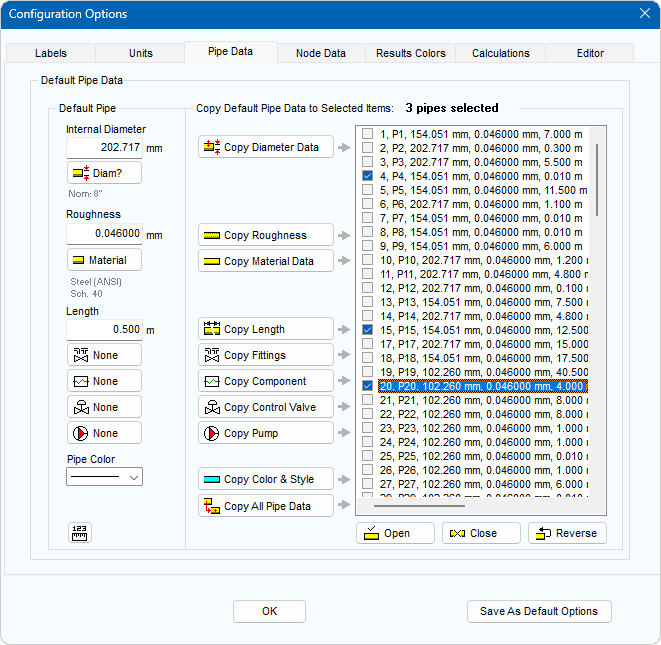
Figure 43 Configuration Options Dialog - Pipe Data Tab
To change the Pipe material:
- Click the Material button. This opens the Pipe Data screen and displays all the pipe materials available in the Pipe Database.
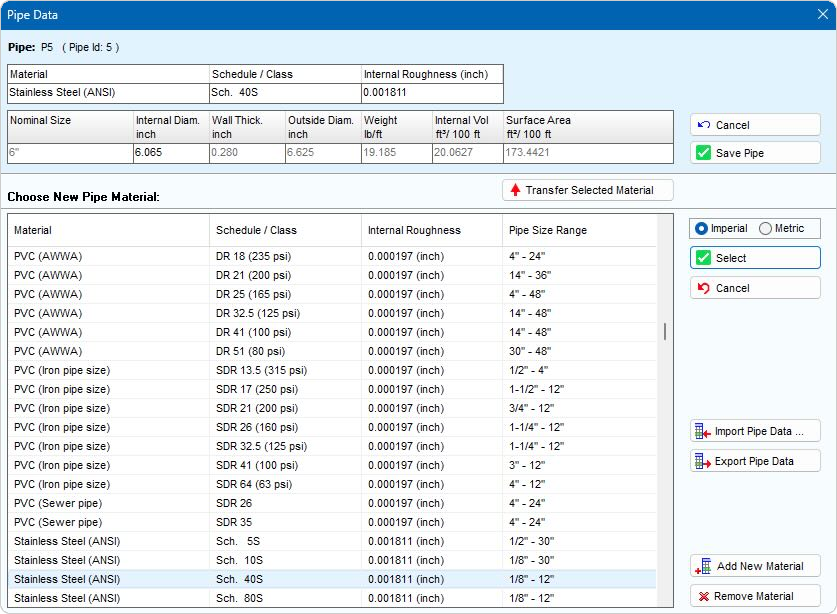
Figure 44 Pipe Data Screen – Materials Database
- Select the Pipe’s material from the Choose New Pipe Material list.
- If the pipe material is not in the Choose New Pipe Material list, click the Add New Material button to add the new material to the list.
See Section: Pipes > Adding a Pipe Material to the Database for further information about adding a pipe material.
- Click the Transfer Selected Material button or double-click the row containing the material.
To change the Pipe size:
- The selected material is displayed in the Pipe section of the Pipe Data screen, and a list of all the different pipe sizes available for the selected pipe material is displayed in the Pipe Diameter list.
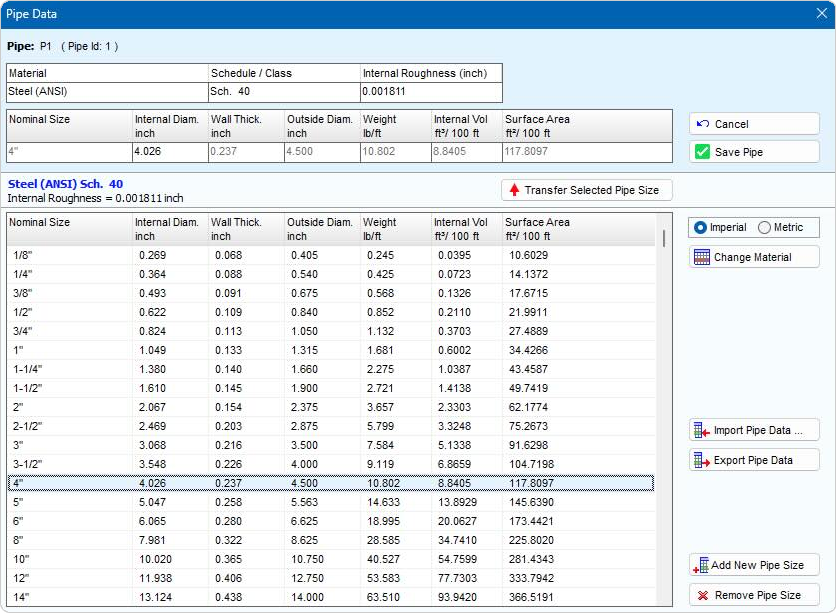
Figure 45 Pipe Data Screen - Pipe Diameter Database
- Select the applicable pipe size from the list.
- If the pipe size is not in the list, click the Add New Pipe Size button to add the new size to the list.
See Section: Pipes > Adding Pipe Size Data to the Database for further information about adding a pipe size.
- Click the Transfer Selected Pipe Size button or double-click the row containing the size. The selected size is displayed below the pipe material in the Pipe section of the Pipe Data screen.
- The Material, Schedule/Class, Internal Roughness and Internal Diameter can be edited in the Pipe section.
NOTE: When editing pipe data, Pipe Flow Expert automatically recalculates the Pipe’s derived attributes to ensure the data remains consistent. If the user changes the material or schedule/class and the updated values exactly match an existing material/schedule combination in the database, the Pipe’s derived properties (wall thickness, outside diameter, weight, internal volume and surface area) are refreshed based on the nominal size for that material/schedule. Likewise, if the internal diameter is modified, the associated derived attributes are updated to reflect the values linked to the corresponding nominal size.
NOTE: The edits made only affect the current Pipe’s properties; they do not affect the database data.
- Click Save Pipe to add the Pipe’s material and size, and to close the Pipe Data screen.
The Default Pipe section on the Pipe Data Tab is now populated with the choices that have been made.
The Pipe’s material is displayed under the Material button, and the nominal size is displayed under the Diam button. The Pipe’s internal diameter and roughness are displayed in the Internal Diameter and Roughness fields on the Default Pipe section of the Pipe Data tab.
To change the Pipe length:
- Type the default pipe length into the Length field on the Pipe Pane.
To change the Fittings on the Pipe:
- The default number of Fittings currently on the selected Pipe is displayed on the Add/Change Fittings button.
- Click the Add/Change Fittings button,
 .
.
- Clicking the Add/Change Fittings button opens the Fitting Data screen. A list of all the Standard K Fittings available in the Fitting database is displayed.
- Select the required fitting method using one of the fitting method dropdown lists. The list of available fittings for the fitting method will be displayed in the Fittings Database section of the Fitting Data screen.
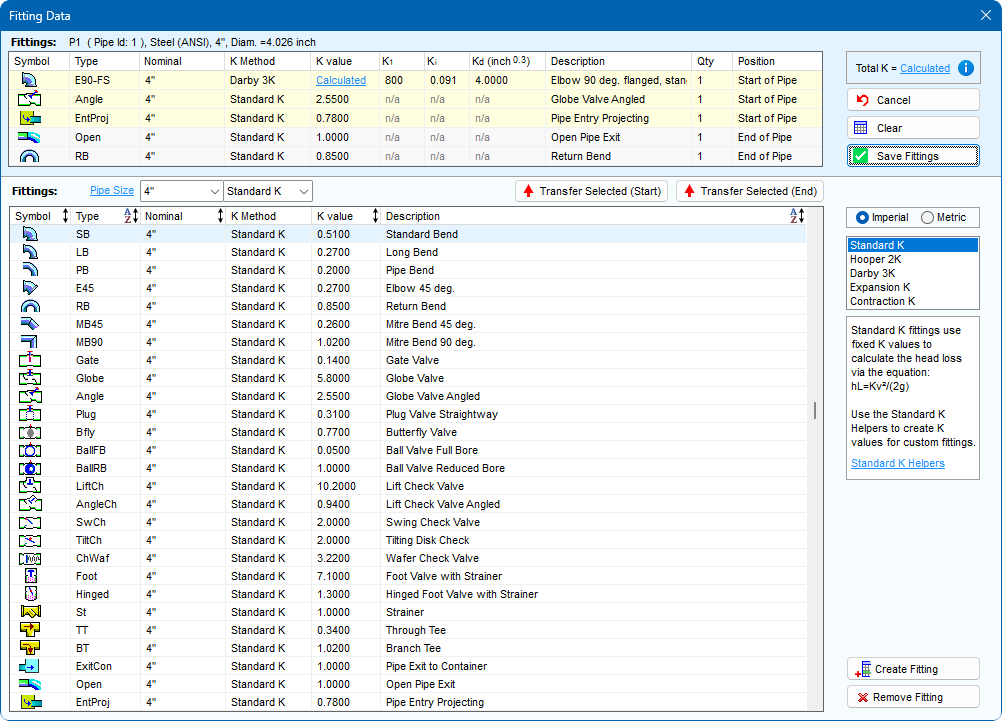
- For Standard K Fittings, select the nominal pipe size from the dropdown lists to move to the required fitting sizes in the Fitting Database.
Click on the Pipe Size label to show the fittings which match the current pipe size.
- If the Fitting is not in the Fitting Database, click the Create Fitting button to add the new Fitting to the database.
See Section: Fittings and Valves > Adding a Fitting to the Database for further information about adding a Fitting to the database.
NOTE: Create Fitting is not available for Expansion K or Contraction K fittings.
- Double click on a Fitting or click on a Transfer Selected button to add it to the Fittings on the Pipe.
- The selected Fitting is displayed in the Pipe Fittings section of the Fitting Data screen.
- Select the quantity of the Fitting you are adding to the Pipe from the Fitting’s Qty list in the Pipe Fittings section.
NOTE: Only one Expansion K or Contraction K can be added to the Pipe and therefore the quantity for these fittings cannot be changed.
- Select the position of the Fitting, Start of Pipe or End of Pipe, from the dropdown list.
NOTE: Expansion K and Contraction K fittings can only be placed at the end of a Pipe and therefore the position of these fittings cannot be changed.
- To add additional Fittings to the Pipe, repeat Steps 4 – 10.
- Click Save to add the Fitting to the Pipe, and to close the Fitting Data screen.
- Confirm the changes to the Default Pipe settings.
- Click OK to save the default Pipe values and close the Configuration Options dialog, or click another tab in the dialog to continue configuring Pipe Flow Expert and the pipe system.