
Choosing Item Labelling
In Pipe Flow Expert, you can configure the labelling of a pipe system displayed in the Drawing Pane. The labelling for the pipe system is configured on the Labels tab of the Configuration Options dialog. The tab is organized by the system components. A series of check boxes are used to configure labelling in drawing/design mode, and a series of radio buttons are used to select labelling options when in results mode. The result options determine which calculated results are displayed for a solved pipe system in the Drawing Pane. Results are displayed for a calculated solved pipe system after clicking the Calculate button on the toolbar.
See Section: Calculations and Results for further information about pipe system results.
To configure the pipe system labelling:
Click the Label button,  , on the tool bar to open the Labels tab of the Configuration Options dialog.
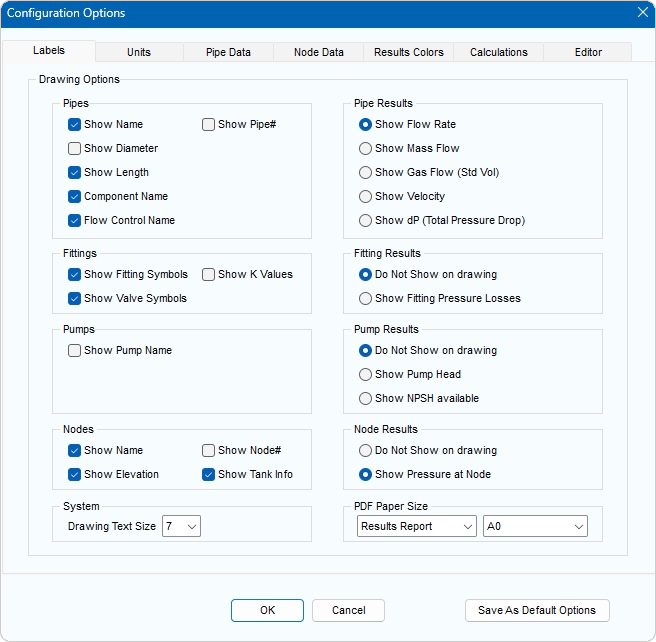
Figure 40 Configuration Options Dialog – Labels Tab
- Select the check boxes next to the labelling options you want to apply to the pipe system in the Pipes, Fittings, Pumps, and Nodes sections.
- Click one of the labelling options in the Pipe Results, Fitting Results, Pump Results and Node Results sections to determine which of the pipe system’s calculation results are displayed in the Drawing Pane.
- Click OK to save the labelling configurations and close the Configuration Options dialog, or click another tab in the dialog to continue configuring Pipe Flow Expert and the pipe system.
- To remove a labelling option, clear the check box next to the applicable label in the Pipes, Fittings, Pumps, or Nodes section of the Labels tab.