

Add a Tank
To add a Tank to the pipe system:
- Click the Add Tank button,
 , on the tool bar.
- When you click the Add Tank button, the Tank symbol is displayed next to your mouse pointer when the pointer is in the Drawing Pane.
- Click on the place on the Drawing Pane where you want to add a Tank.
- The Tank is added to the system, and is selected on the Drawing Pane. Define the Tank’s properties in the Node Pane.
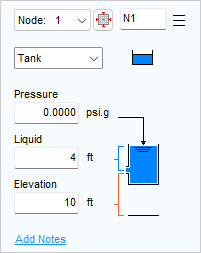
- Type the Tank’s name in the Node field.
- Tank is automatically selected in the Type list.
- Click the Tank Icon button to select the Tank image you want displayed on the pipe system drawing. The icon size can be selected from a range of scales. The image you select does not affect any of the Tank’s properties or values.
- Type the surface pressure of the fluid in the Tank in the Pressure field.
- Type the amount of fluid above the Tank exit point in the Liquid field.
- Type the exit elevation from the Tank in the Elevation field.
- Type any applicable notes regarding the Tank in the Notes field.
- To add additional Tanks to the system, repeat Steps 3 – 12.